Your Dashboard
The Dashboard is your home base. Every patient who fills out your link shows up here as a card. You can also start a form yourself for a walk-in patient.
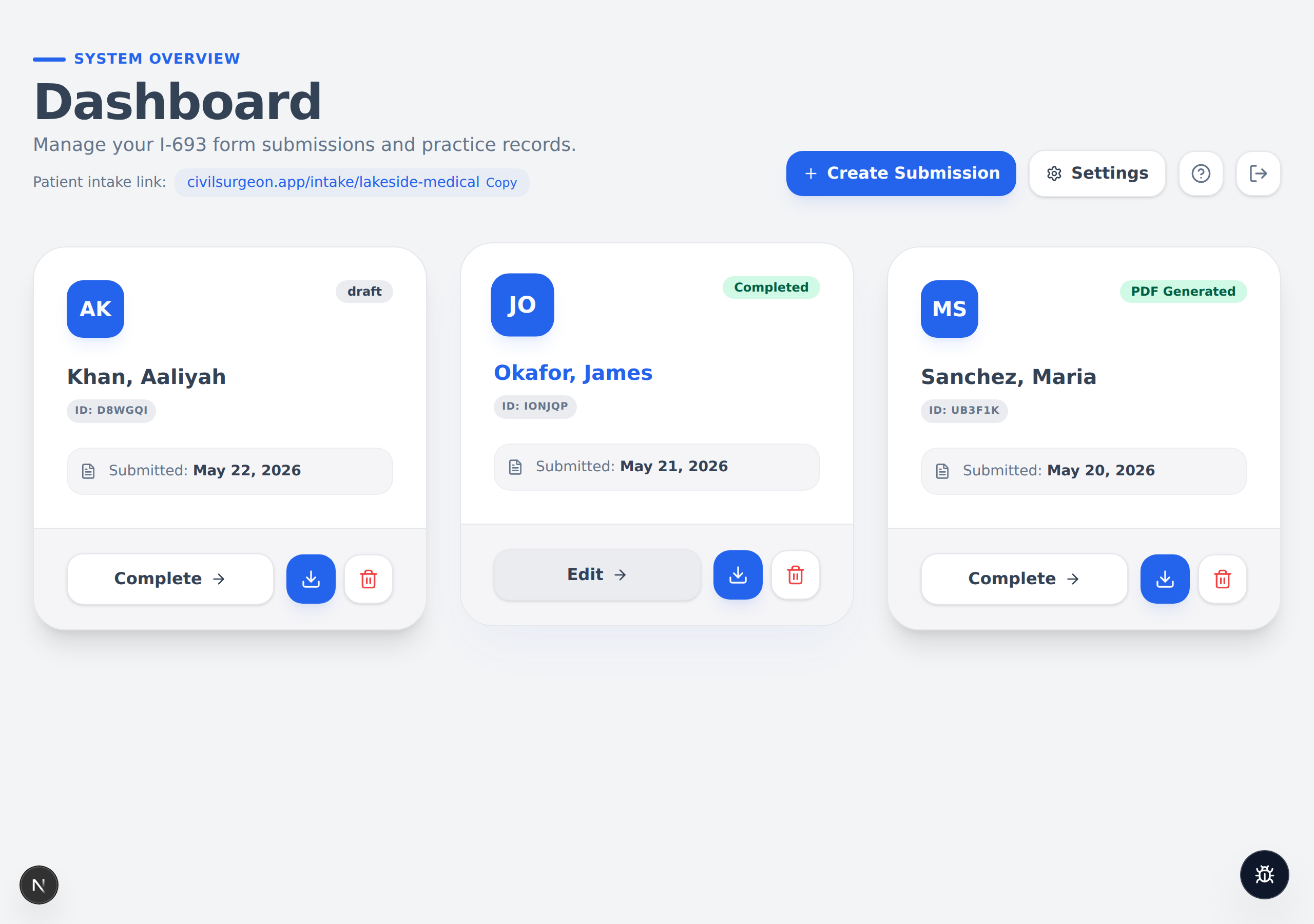
The buttons at the top
| Button | What it does |
|---|---|
| + Create Submission (blue) | Starts a brand-new, empty form. Use this for a patient who did not fill out your online link first. |
| Settings (white, with a gear) | Opens your clinic settings. |
| ? (question mark) | Opens this help guide. |
| Arrow icon | Signs you out. |
At the top you also see your patient intake link with a "Copy" button next to it — a quick way to grab the link to send to a patient.
Reading a patient card
Each card shows:
- A colored circle with the patient's initials.
- The patient's name as Last name, First name.
- A short ID (the last few characters of the record).
- The date it was Submitted.
- A status label in the top-right of the card.
What the status labels mean
| Label | Meaning |
|---|---|
| draft (gray) | Started, but the medical sections are not finished yet. |
| Completed (green) | Every required section is filled in. |
| PDF Generated (green) | The finished PDF has been downloaded. |
The buttons on each card
- "Complete →" (or "Edit →") — Opens the form so you can fill in the medical sections. This is the main button you will use.
- Blue download icon — Downloads the PDF right away.
- Red trash icon — Deletes the record.
warning
Deleting a record cannot be undone. A confirmation box appears first — read it before you click "Delete".
Starting a form for a walk-in patient
If a patient arrives without using your link:
- Click the blue "+ Create Submission" button.
- A new empty record opens automatically.
- Fill in the patient's details in Step 1 (Applicant Intake) yourself.
note
If your Dashboard is empty, you will see a "No submissions yet" message with a "Create New Submission" button. That is normal for a brand-new account.